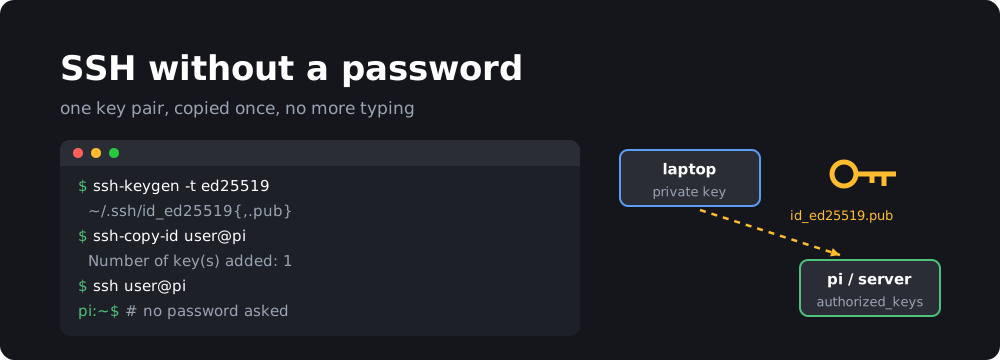
Typing a password every time you SSH into a Raspberry Pi or a server gets old fast. SSH keys fix that: you create a key pair once, put the public half on the remote machine, and from then on you log in without a password. Keys are also a lot harder to brute-force than a password.
1. Generate a key pair
Run this on the machine you are going to log in from:
ssh-keygen -t ed25519 -C "you@your-laptop"
Press Enter to accept the default location (~/.ssh/id_ed25519). You can set a passphrase to protect the private key, or leave it empty for fully password-less logins.
Ed25519 keys are short, fast and supported by any OpenSSH from the last decade. If you need to connect to a very old system, use ssh-keygen -t rsa -b 4096 instead.
2. Check the public key
cat ~/.ssh/id_ed25519.pub
You should see one line starting with ssh-ed25519. This is the part you copy to other machines. Never share the file without .pub, that’s your private key.
3. Copy the key to the remote machine
ssh-copy-id -i ~/.ssh/id_ed25519.pub user@host
ssh-copy-id asks for the remote user’s password one last time and appends your key to ~/.ssh/authorized_keys on the remote host.
On Windows, where ssh-copy-id isn’t available, you can do the same from PowerShell:
type $env:USERPROFILE\.ssh\id_ed25519.pub | ssh user@host "mkdir -p ~/.ssh && cat >> ~/.ssh/authorized_keys"
4. Log in
ssh user@host
If you’re not asked for a password, it worked.
5. (Optional) Disable password logins
Once key login works, you can switch off password authentication on the server so nobody can guess their way in. Edit /etc/ssh/sshd_config and set:
PasswordAuthentication no
On Ubuntu also check the files in /etc/ssh/sshd_config.d/, since a file like 50-cloud-init.conf can turn password logins back on. Then restart the SSH service:
sudo systemctl restart ssh
Keep your current session open and test from a second terminal before you log out, so a typo can’t lock you out.