Remote access is a cornerstone of any robust home lab or small business network. While there are many VPN flavors out there, WireGuard has quickly become the gold standard due to its incredible speed, lightweight footprint, and cryptographic security.
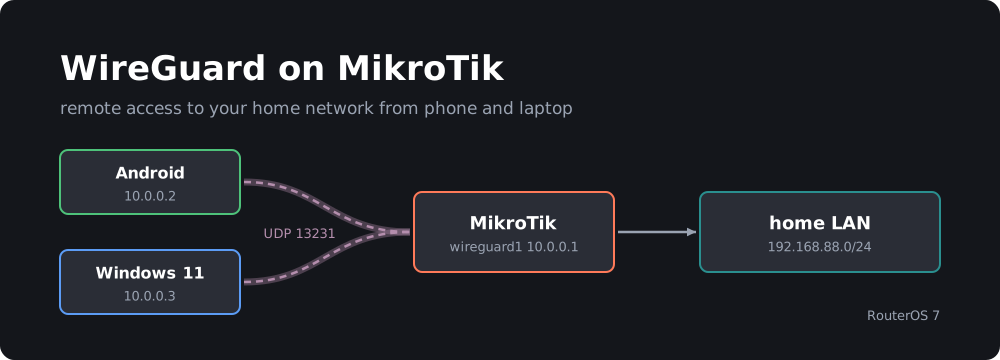
If you run a MikroTik router (RouterOS v7+), you have a powerful enterprise-grade WireGuard server sitting right in your living room. In this article, we’ll walk through setting up WireGuard on your MikroTik router and configuring clients for both Android and Windows 11.
Why WireGuard on MikroTik?
- Kernel-Level Speed: Unlike OpenVPN, which can bottleneck weaker router CPUs, WireGuard runs directly in the RouterOS kernel, maximizing your throughput.
- Silence is Golden: WireGuard does not respond to unauthenticated packets. To a port scanner on the internet, your VPN port looks completely closed.
- Roaming Support: If your phone switches from Wi-Fi to 4G/5G, the WireGuard connection transitions instantly without dropping your session.
Phase 1: Configuring the MikroTik Server
Every WireGuard topology relies on a public/private key exchange. Think of it this way: your router and your phone will each generate their own unique key pair, and then they will swap public keys to trust one another.
1. Create the WireGuard Interface
Open Winbox and navigate to WireGuard from the left menu. Click the + (Add) button.
- Name:
wireguard1 - Listen Port:
13231(Default)
Click Apply. RouterOS will instantly generate your unique Private Key and Public Key. Copy the Public Key somewhere safe; you will need it for the clients.
2. Assign an IP Subnet to the VPN
Go to IP -> Addresses -> + (Add). We need a dedicated internal subnet for our VPN clients.
- Address:
10.0.0.1/24 - Network:
10.0.0.0 - Interface:
wireguard1
3. Open the Firewall Port
Go to IP -> Firewall -> Filter Rules -> + (Add). WireGuard uses UDP, so we must allow incoming traffic on our listening port.
- Chain:
input - Protocol:
udp - Dst. Port:
13231 - Action:
accept
Crucial: Drag this rule to the very top of your Firewall input list so the traffic isn’t dropped by default drop rules.
Phase 2: Connecting an Android Device
On mobile devices, configuration is a breeze thanks to visual key exchanges.
- Download the official WireGuard app from the Google Play Store.
- Tap the blue + (Plus) icon and select Create from scratch.
- Under the Interface section, give it a name (e.g.,
HomeVPN). You will see a pre-generated Public key. Copy this key—you need to add it to MikroTik. - Fill in the Interface details:
- Addresses:
10.0.0.2/24(This is your phone’s fixed VPN IP). - DNS Servers:
192.168.88.1(Your MikroTik’s local IP).
- Addresses:
- Tap Add Peer at the bottom:
- Public Key: Paste the MikroTik’s Public Key here.
- Endpoint: Your public home IP address or MikroTik DDNS, followed by the port (e.g.,
yourhome.sn.mynetname.net:13231). - Allowed IPs:
0.0.0.0/0(Redirects all mobile internet traffic securely through your home) OR192.168.88.0/24(Only routes traffic intended for home lab devices).
- Back on MikroTik: Go to the Peers tab -> +. Select
wireguard1, paste your Phone’s Public Key, and set Allowed Address to10.0.0.2/32. - Save both sides, toggle the switch on your phone, and you are connected!
Phase 3: Connecting a Windows 11 PC
Since you can’t easily scan QR codes on a desktop, Windows configuration is done via a simple text configuration file (.conf).
- Download and install WireGuard for Windows from wireguard.com.
- Click the arrow next to Add Tunnel and choose Add empty tunnel….
- A window will pop up showing a fresh Public Key. Copy this key and register it in MikroTik -> Peers with the IP
10.0.0.3/32. - Overwrite the text box in the Windows client with the following blueprint configuration:
[Interface]
PrivateKey = [YOUR_WINDOWS_PRIVATE_KEY_DO_NOT_TOUCH]
Address = 10.0.0.3/24
DNS = 192.168.88.1

[Peer]
PublicKey = [PASTE_YOUR_MIKROTIK_PUBLIC_KEY_HERE]
Endpoint = [YOUR_PUBLIC_IP_OR_DDNS]:13231
AllowedIPs = 192.168.88.0/24
PersistentKeepalive = 25
Pro-Tip: Split Tunneling vs. Full Tunneling on Windows
For desktops and laptops, it is usually best to use Split Tunneling by setting AllowedIPs = 192.168.88.0/24. This means your regular PC gaming, web surfing, and video streaming happen over your local network, while only requests destined for your home lab servers get routed through the VPN tunnel.
The PersistentKeepalive = 25 line ensures that your PC sends a tiny blank packet every 25 seconds, preventing aggressive cellular or public Wi-Fi firewalls from closing your idle connection.
Troubleshooting: Why am I getting 0 B Received?
If your client says “Active” but the Transfer: Received counter sits stubbornly at 0 B, your tunnel is failing its cryptographic handshake. Check these three things:
- Key Swap Mishap: Double-check that you didn’t accidentally paste the router’s key into the router’s peer settings. The router must hold the client’s key, and the client must hold the router’s key.
- IP Subnet Mismatch: Ensure the client IP (e.g.,
10.0.0.3) matches the specific/32allowed address you assigned to that peer inside MikroTik. - CGNAT / Dynamic IP: If your ISP hides your router behind a CGNAT (Carrier-Grade NAT), a direct WireGuard handshake won’t work without a middleman server. Use MikroTik’s built-in Cloud DDNS (
/ip/cloud) to track dynamic IPs effortlessly.
Wrap Up
Once implemented, WireGuard provides a seamless, “always-on” feel. You can map network drives, access your Home Assistant dashboards, or SSH into your Linux hosts from anywhere in the world, knowing your perimeter remains completely secure.